Voice-Enabled AI Chatbot with Laravel & JavaScript: Let Your App Talk Back
Originally published on GeekyAnts Blog · By Sidharth Pansari, Software Engineer at GeekyAnts · Jul 2, 2025
Introduction — Let's Make Your App Talk
Have you ever thought, "What if users could just talk to my app instead of typing?"
We thought the same. Typing is fine, but speaking feels more natural — especially for quick queries, accessibility, or just building something cool.
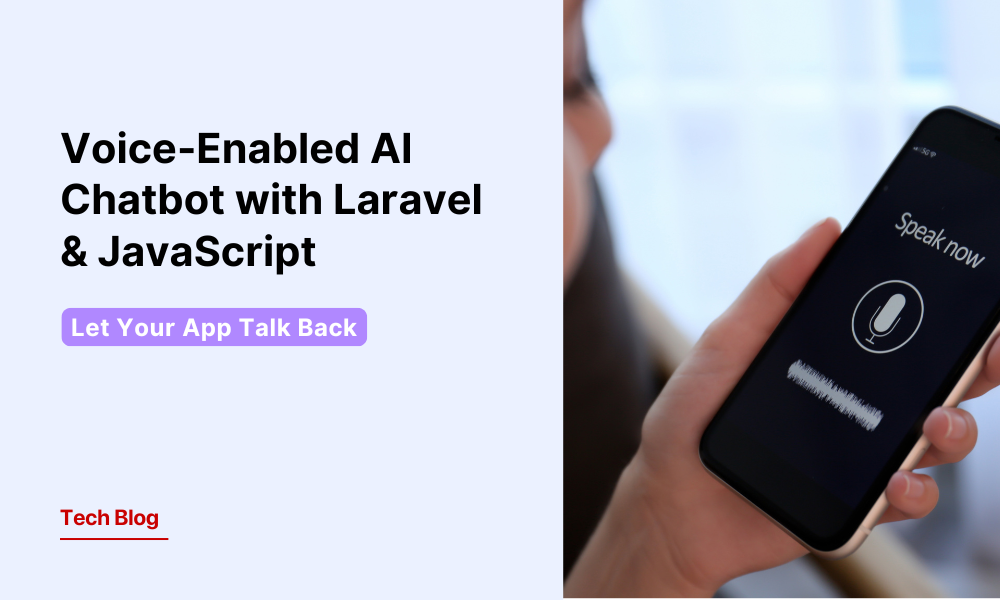
So in this guide, we're going to build a simple voice-enabled chatbot — something that listens to what you say, sends it to OpenAI's GPT model, and then speaks the response back to you.
No React, no complex setup — just vanilla JavaScript on the frontend, and Laravel on the backend. It's clean, fast, and fun.
What's the Challenge?
The tricky part is getting all three systems to talk to each other:
- The browser needs to hear your voice and turn it into text (using the Web Speech API).
- The backend needs to process that text and generate a response (via OpenAI).
- The browser needs to speak the response out loud again (using SpeechSynthesis).
You'll also have to deal with:
- Browser compatibility
- Microphone permissions
- Network delays
- And of course, OpenAI rate limits
But don't worry — we'll walk through every step. Think of this like a casual pair-programming session where we're building this together.
Step 1: Setting Up the Laravel Backend
Let's get the backend ready to receive voice input and send it to OpenAI.
Install the Required Package
We'll use the official OpenAI PHP SDK to keep things smooth:
composer require openai-php/laravel
Then, in your .env file, add your OpenAI API key:
OPENAI_API_KEY=sk-xxxxxxxxxxxxxxxxxxxx
That's it — we're ready to hit OpenAI's API.
The Controller
Create a controller called VoiceChatbotController with two methods:
index()— loads the main chatbot pagehandle()— receives the transcript and sends it to OpenAI
<?php

namespace App\Http\Controllers;

use Illuminate\Http\Request;
use OpenAI\Laravel\Facades\OpenAI;

class VoiceChatbotController extends Controller
{
    public function index()
    {
        return view('voice-chatbot');
    }

    public function handle(Request $request)
    {
        $request->validate([
            'transcript' => 'required|string|max:1000',
        ]);

        $response = OpenAI::chat()->create([
            'model' => 'gpt-4o',
            'messages' => [
                ['role' => 'system', 'content' => 'You are a helpful voice assistant. Keep your answers concise and conversational.'],
                ['role' => 'user', 'content' => $request->transcript],
            ],
        ]);

        return response()->json([
            'reply' => $response->choices[0]->message->content,
        ]);
    }
}
Routes
In your web.php:
use App\Http\Controllers\VoiceChatbotController;

Route::get('/voice-chatbot', [VoiceChatbotController::class, 'index']);
In your api.php:
Route::post('/voice-chatbot', [VoiceChatbotController::class, 'handle']);
That's it for Step 1!
Your backend is now:
- Ready to receive spoken input as plain text
- Talking to OpenAI using GPT-4o
- Returning an AI-generated reply as JSON
Step 2: Capturing Voice in the Browser (Using Web Speech API)
Now let's build the complete frontend interface — the HTML structure, speech recognition setup, and all the UX details that make it feel polished.
Do I need to install anything here? Nope! Modern browsers (especially Chrome and Edge) already support this via the Web Speech API.
HTML Structure
Create your voice-chatbot.blade.php:
<!DOCTYPE html>
<html lang="en">
<head>
    <meta charset="UTF-8">
    <meta name="viewport" content="width=device-width, initial-scale=1.0">
    <meta name="csrf-token" content="{{ csrf_token() }}">
    <title>Voice AI Chatbot</title>
    <style>
        * { margin: 0; padding: 0; box-sizing: border-box; }

        body {
            min-height: 100vh;
            display: flex;
            align-items: center;
            justify-content: center;
            background: linear-gradient(135deg, #667eea 0%, #764ba2 100%);
            font-family: 'Segoe UI', sans-serif;
        }

        .chatbot-container {
            background: rgba(255, 255, 255, 0.15);
            backdrop-filter: blur(20px);
            border-radius: 24px;
            padding: 40px;
            width: 480px;
            box-shadow: 0 25px 50px rgba(0,0,0,0.3);
            border: 1px solid rgba(255,255,255,0.2);
            text-align: center;
        }

        h1 { color: white; font-size: 1.8rem; margin-bottom: 8px; }
        .subtitle { color: rgba(255,255,255,0.75); margin-bottom: 32px; font-size: 0.95rem; }

        .mic-button {
            width: 80px; height: 80px; border-radius: 50%;
            background: white; border: none; cursor: pointer;
            font-size: 2rem; margin-bottom: 24px;
            transition: all 0.3s ease;
            box-shadow: 0 8px 25px rgba(0,0,0,0.2);
        }
        .mic-button:hover { transform: scale(1.1); }
        .mic-button.recording { background: #ff4757; animation: pulse 1s infinite; }
        .mic-button:disabled { opacity: 0.5; cursor: not-allowed; transform: none; }

        @keyframes pulse {
            0%, 100% { box-shadow: 0 8px 25px rgba(255,71,87,0.4); }
            50% { box-shadow: 0 8px 40px rgba(255,71,87,0.8); }
        }

        .status { color: rgba(255,255,255,0.9); margin-bottom: 20px; font-size: 0.9rem; min-height: 20px; }

        .transcript-box, .response-box {
            background: rgba(255,255,255,0.1);
            border-radius: 12px; padding: 16px;
            margin-bottom: 16px; text-align: left;
            border: 1px solid rgba(255,255,255,0.2);
            display: none;
        }
        .transcript-box.visible, .response-box.visible { display: block; }

        .box-label { color: rgba(255,255,255,0.6); font-size: 0.75rem; margin-bottom: 6px; text-transform: uppercase; }
        .box-content { color: white; font-size: 0.95rem; line-height: 1.5; }
    </style>
</head>
<body>
    <div class="chatbot-container">
        <h1>🎙️ Voice AI Chatbot</h1>
        <p class="subtitle">Click the mic, speak your question, and listen to the reply</p>

        <button class="mic-button" id="micBtn" onclick="toggleRecording()">🎤</button>

        <div class="status" id="status">Click the mic to start speaking</div>

        <div class="transcript-box" id="transcriptBox">
            <div class="box-label">You said</div>
            <div class="box-content" id="transcriptText"></div>
        </div>

        <div class="response-box" id="responseBox">
            <div class="box-label">AI Response</div>
            <div class="box-content" id="responseText"></div>
        </div>
    </div>

    <script>
        // JS goes here (Steps 2 & 3 below)
    </script>
</body>
</html>
This gives us a clean glassmorphism design with proper button states and feedback areas.
Setting Up Speech Recognition
Add the following inside your <script> tag:
const SpeechRecognition = window.SpeechRecognition || window.webkitSpeechRecognition;

if (!SpeechRecognition) {
    document.getElementById('status').textContent = '❌ Speech recognition not supported. Use Chrome or Edge.';
    document.getElementById('micBtn').disabled = true;
}

const recognition = new SpeechRecognition();
recognition.lang = 'en-US';
recognition.interimResults = false;
recognition.continuous = false;

let isRecording = false;
let currentTranscript = '';
Breaking that down:
recognition.lang = 'en-US'— sets the language to English (easily swappable).interimResults = false— we only care about the final result.continuous = false— stops listening after a single sentence or phrase.
Essential Utility Functions
function updateStatus(message) {
    document.getElementById('status').textContent = message;
}

function showTranscript(text) {
    const box = document.getElementById('transcriptBox');
    document.getElementById('transcriptText').textContent = text;
    box.classList.add('visible');
}

function showResponse(text) {
    const box = document.getElementById('responseBox');
    document.getElementById('responseText').textContent = text;
    box.classList.add('visible');
}

function setButtonState(state) {
    const btn = document.getElementById('micBtn');
    if (state === 'recording') {
        btn.textContent = '⏹️';
        btn.classList.add('recording');
        btn.disabled = false;
    } else if (state === 'processing') {
        btn.textContent = '⏳';
        btn.classList.remove('recording');
        btn.disabled = true;
    } else {
        btn.textContent = '🎤';
        btn.classList.remove('recording');
        btn.disabled = false;
    }
}
Button Control Functions
function toggleRecording() {
    if (isRecording) {
        stopRecording();
    } else {
        startRecording();
    }
}

function startRecording() {
    currentTranscript = '';
    document.getElementById('transcriptBox').classList.remove('visible');
    document.getElementById('responseBox').classList.remove('visible');

    recognition.start();
    isRecording = true;
    setButtonState('recording');
    updateStatus('🎙️ Listening... speak now');
}

function stopRecording() {
    recognition.stop();
    isRecording = false;
    updateStatus('Processing...');
}
Speech Recognition Event Handlers
recognition.onresult = (event) => {
    currentTranscript = event.results[0][0].transcript;
    showTranscript(currentTranscript);
    updateStatus('✅ Got it! Sending to AI...');
};

recognition.onerror = (event) => {
    isRecording = false;
    setButtonState('idle');
    const errors = {
        'not-allowed': '❌ Microphone access denied. Please allow mic permissions.',
        'no-speech': '⚠️ No speech detected. Try again.',
        'network': '❌ Network error during recognition.',
    };
    updateStatus(errors[event.error] || `❌ Error: ${event.error}`);
};
Step 3: Complete Voice-to-AI-to-Speech Flow
Now it's time to connect everything. Replace your recognition.onend with this complete implementation:
recognition.onend = async () => {
    isRecording = false;

    if (!currentTranscript) {
        setButtonState('idle');
        updateStatus('⚠️ Nothing was captured. Try again.');
        return;
    }

    setButtonState('processing');
    updateStatus('🤖 Thinking...');

    try {
        const csrfToken = document.querySelector('meta[name="csrf-token"]').getAttribute('content');

        const response = await fetch('/api/voice-chatbot', {
            method: 'POST',
            headers: {
                'Content-Type': 'application/json',
                'X-CSRF-TOKEN': csrfToken,
                'Accept': 'application/json',
            },
            body: JSON.stringify({ transcript: currentTranscript }),
        });

        if (!response.ok) throw new Error(`HTTP error! status: ${response.status}`);

        const data = await response.json();
        const reply = data.reply;

        showResponse(reply);
        updateStatus('🔊 Speaking response...');

        // Use SpeechSynthesis to speak the reply
        const utterance = new SpeechSynthesisUtterance(reply);
        utterance.lang = 'en-US';
        utterance.rate = 1.0;
        utterance.pitch = 1.0;

        utterance.onend = () => {
            setButtonState('idle');
            updateStatus('✅ Done! Click mic to ask another question.');
        };

        utterance.onerror = () => {
            setButtonState('idle');
            updateStatus('⚠️ Could not speak the response.');
        };

        window.speechSynthesis.speak(utterance);

    } catch (error) {
        console.error('Error:', error);
        setButtonState('idle');
        updateStatus('❌ Failed to get AI response. Please try again.');
    }
};
Security Note
Make sure the CSRF token meta tag is in your blade template's <head>:
<meta name="csrf-token" content="{{ csrf_token() }}">
What Happens End-to-End
Here's the full lifecycle of a single voice interaction:
- Capture — User clicks the mic button and speaks
- Transcribe — Web Speech API converts speech to text
- Send — Transcript is POSTed to Laravel via
fetch() - Process — Laravel sends the text to OpenAI GPT-4o
- Receive — JavaScript gets the AI reply as JSON
- Speak —
SpeechSynthesisUtterancereads the reply aloud - Reset — UI resets for the next conversation
Conclusion — Let Your App Talk Back
And there you have it — a fully working voice-enabled AI chatbot built with just Laravel, JavaScript, and the OpenAI API.
Here's what you accomplished:
- ✅ Captured the user's voice via the browser
- ✅ Transcribed it using the Web Speech API
- ✅ Sent it to Laravel for processing
- ✅ Passed it to GPT-4o via OpenAI
- ✅ Got a smart reply back
- ✅ Spoke the response aloud using SpeechSynthesis
No third-party libraries. No frontend frameworks. Just pure browser APIs and Laravel handling the backend logic.
This isn't just a cool demo — it opens up real use cases:
- Customer support bots — always-on voice assistance
- Interactive tutorials — step-by-step spoken guidance
- Accessibility tools — voice interfaces for users who prefer not to type
- Internal tools — hands-free productivity for field teams
Bonus Ideas to Level Up
1. Add Roles or Personalities
Let the AI behave like a tutor, customer support agent, or coding assistant using system messages in the OpenAI API:
['role' => 'system', 'content' => 'You are a friendly customer support agent for an e-commerce store.'],
2. Support Multiple Languages
Change the recognition language for multilingual support:
recognition.lang = 'hi-IN'; // Hindi
recognition.lang = 'es-ES'; // Spanish
recognition.lang = 'fr-FR'; // French
You can also translate results using OpenAI or Google Translate APIs before sending them for processing.
3. Add Memory or Context
Right now the bot responds statelessly. Maintain a message history and pass it in each API call for a truly conversational experience:
\(messages = array_merge(\)conversationHistory, [
    ['role' => 'user', 'content' => $request->transcript],
]);
4. Secure It for Production
- Add rate-limiting middleware to prevent API abuse
- Cache repeated responses to reduce OpenAI costs
- Never expose API tokens in frontend JavaScript
- Validate and sanitize all input server-side
That's a Wrap!
This tutorial showed you how to blend speech, AI, and Laravel into a conversational interface with a surprisingly simple setup.
No complex framework. No third-party voice service. Just the web platform doing what it was built to do — and a little help from GPT-4o.
Want to build intelligent, voice-enabled applications? Talk to GeekyAnts.